Radar Pack iOS App Support
Real-time push notifications and two-factor authentication for your Radar Pack dashboard on iPhone.
Radar Pack is a companion mobile app for the Radar Pack WordPress monitoring platform. It delivers real-time push notifications for site alerts and provides two-factor authentication for your dashboard login.
This page covers setup, features, and common questions for the iOS app.
Getting Started
The Radar Pack mobile app works with an existing Radar Pack account. There is no separate sign-up inside the app — you pair your device to your account by scanning a QR code from the Radar Pack dashboard.
Step 1: Install the App
Download Radar Pack from the App Store.
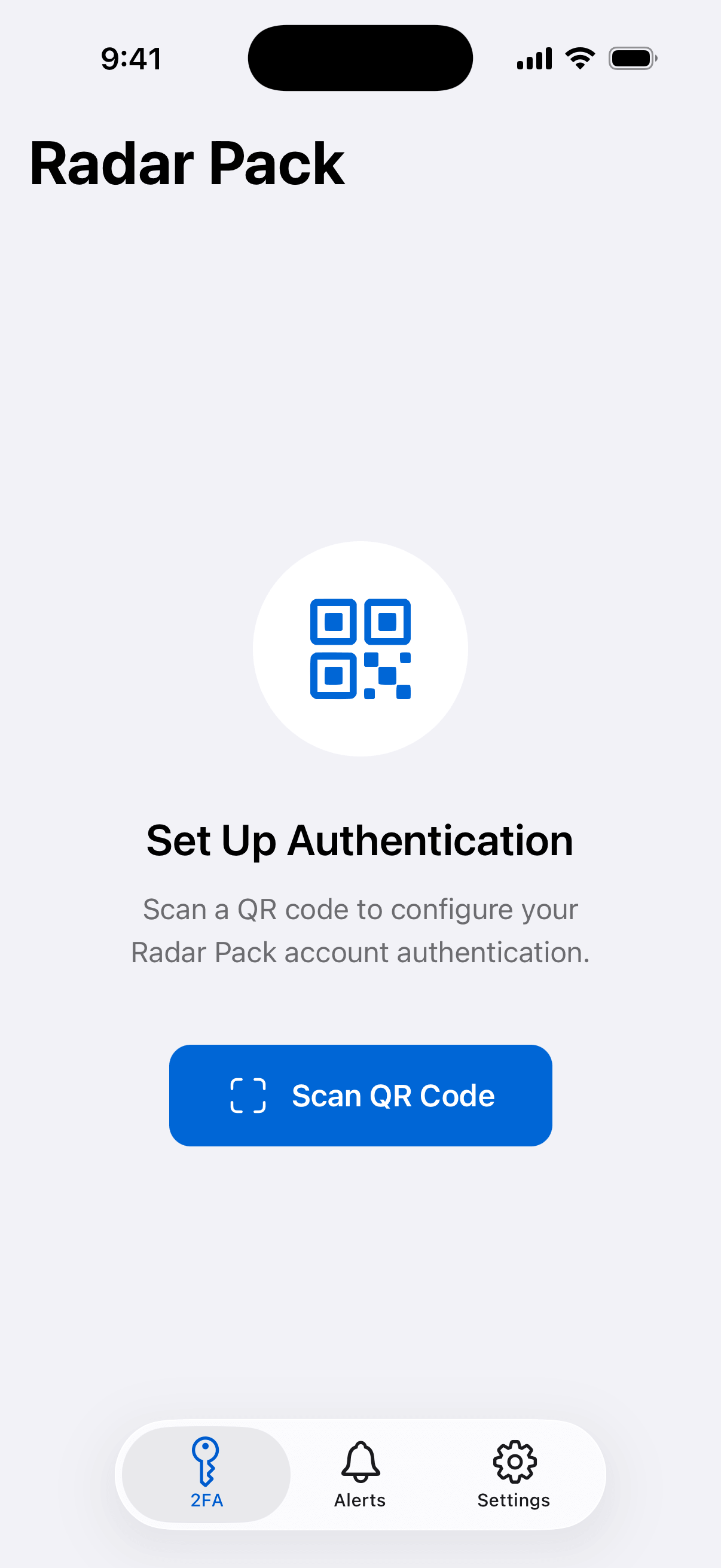
When you open the app for the first time, you will see the welcome screen with a "Scan QR Code" button.
Step 2: Generate a Pairing QR Code
On a computer or another device, sign in to your Radar Pack dashboard at dash.radarpack.com. Navigate to Settings > Notifications > Pair a Device. A QR code will appear on screen.
Step 3: Scan the QR Code
In the Radar Pack app, tap Scan QR Code. Point your camera at the QR code displayed on your dashboard. The app will automatically detect and process the code.
If the camera isn't available (for example, on a device without a working camera or when scanning is awkward), tap Can't scan? Enter code manually below the Scan QR Code button. On the dashboard, click Copy pairing code below the QR code, then paste it into the app.
After a successful scan, the app will ask for permission to send notifications. We recommend allowing notifications so you receive alerts and login approval requests in real time.
Step 4: You're Paired
Once paired, the app displays two tabs:
- Radar Pack — Two-factor authentication for dashboard logins
- Alerts — Real-time notifications from your monitored sites
You can access Settings from the tab bar to configure the app.
Alerts
When something needs your attention, the Radar Pack platform sends a push notification directly to your device. Each alert is tagged with a severity level so you can tell at a glance whether it's informational, a warning, or critical.
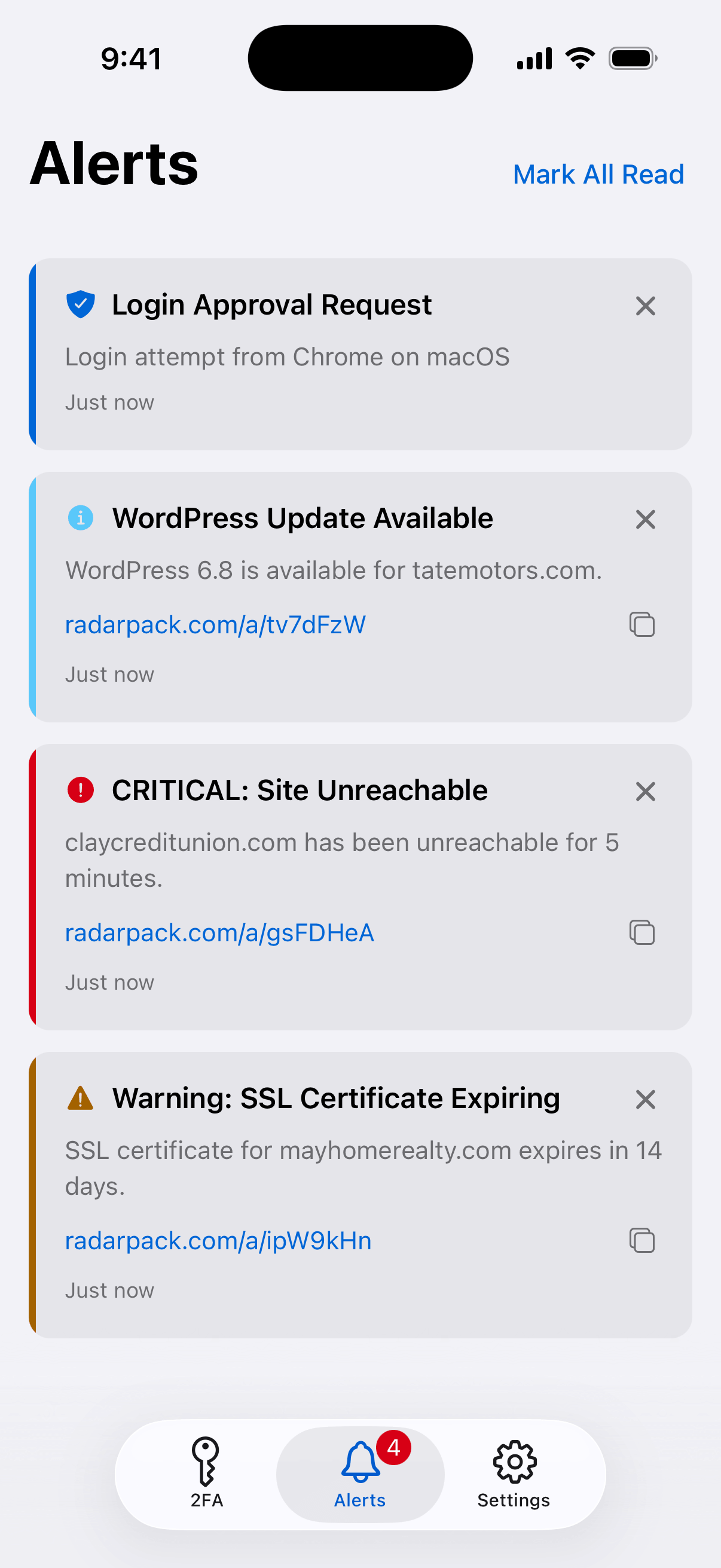
The Alerts tab shows your notification history. From here you can:
- Tap any alert to view details
- Swipe to dismiss individual alerts
- Tap Mark All Read to clear unread indicators
Alerts are delivered via push notification even when the app is closed. If you aren't receiving notifications, check that notifications are enabled for Radar Pack in your device settings.
Two-Factor Authentication
Radar Pack uses push-based two-factor authentication to secure your dashboard login. When you (or anyone) attempts to sign in to your Radar Pack dashboard, a push notification is sent to your paired device.
Approving or Denying a Login
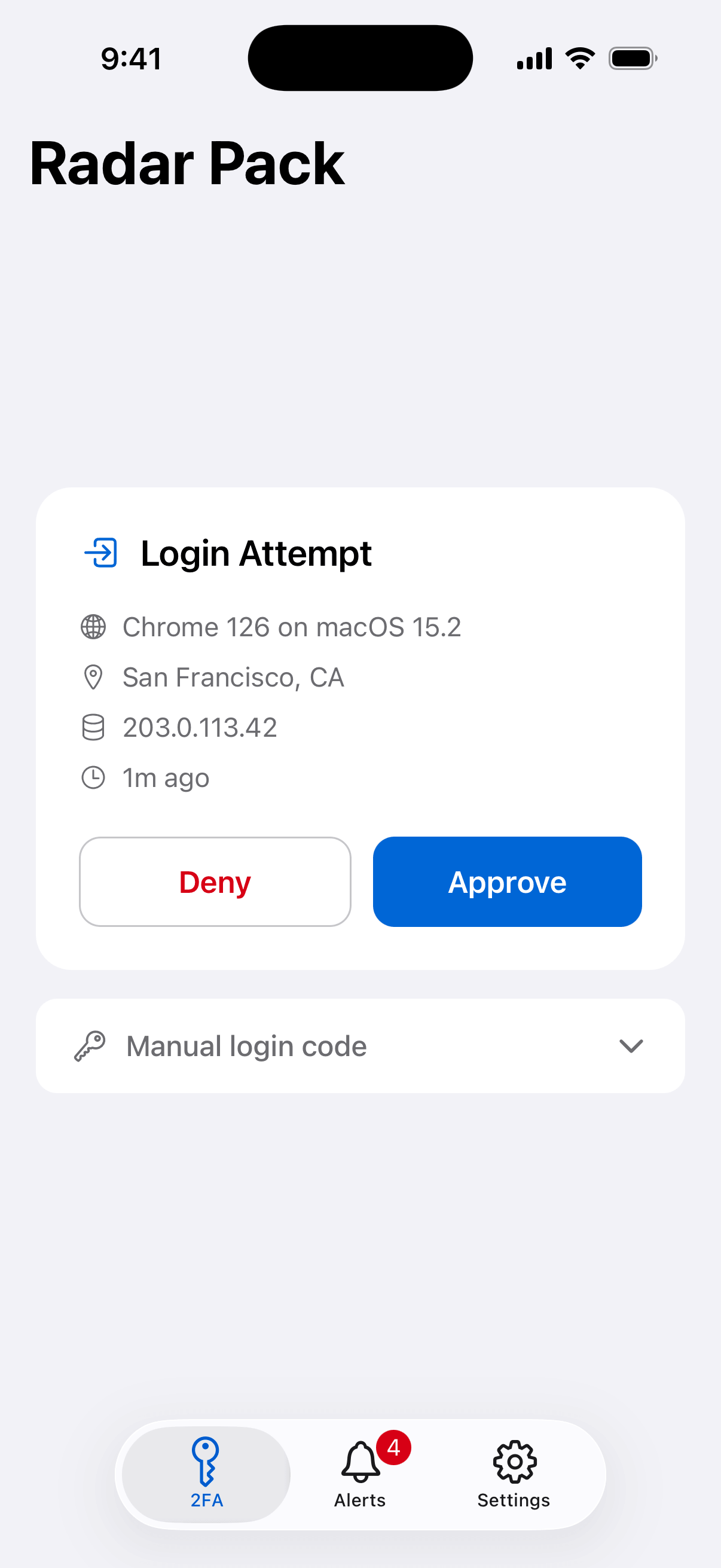
When a login attempt is detected, you'll receive a push notification. Open the app and you'll see the login request with details about the attempt. Tap Approve to allow the login or Deny to block it.
Manual Login Code
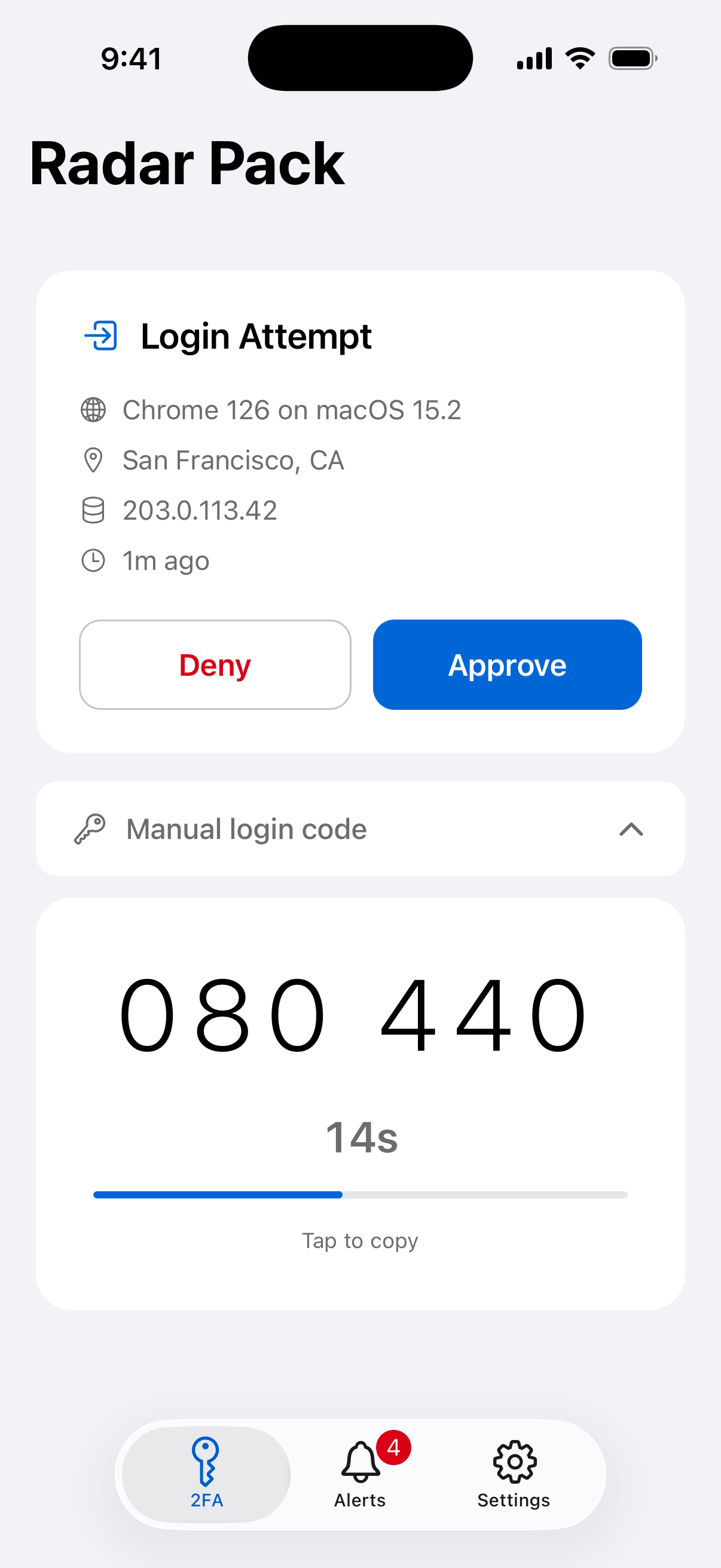
If you can't receive push notifications (for example, if your device is offline), you can use a time-based one-time password (TOTP) as a fallback. Tap Manual login code on the main screen to reveal a 6-digit code that refreshes every 30 seconds. Enter this code on the dashboard login screen when prompted.
Setting Up Two-Factor Authentication
Two-factor authentication is configured automatically when you pair your device. No additional setup is required in the app. To manage your 2FA settings (such as enabling or disabling it), visit Settings > Security in your Radar Pack dashboard.
Settings
Access Settings from the tab bar at the bottom of the app.
Appearance
Choose between Light, Dark, or Auto (matches your device setting). The app respects your system-wide appearance preference by default.
App Lock
If your iPhone supports Face ID or Touch ID, you can enable App Lock to require authentication each time you open the app. This adds an extra layer of security to your two-factor authentication codes and alerts.
This option only appears if your device has Face ID, Touch ID, or a passcode configured.
Send Test Notification
Tap Send test notification to verify that push notifications are working correctly on your device. You should receive a test notification within a few seconds. This is useful after initial setup or if you suspect notifications aren't being delivered.
Send Test Login Approval
Tap Send test login approval to preview the login approval prompt without attempting a real dashboard sign-in. The app creates a fake login request and opens the approval UI so you can see exactly what a real login prompt looks like. Tapping Approve on the test prompt confirms the flow is working — the test approval does not grant any session or credentials.
Unpair Device
Tap Unpair and reset to disconnect your device from your Radar Pack account. This will:
- Remove the device registration from the Radar Pack server
- Clear all alerts stored on the device
- Remove your two-factor authentication configuration from the app
- Return the app to the welcome screen
This action cannot be undone. You can pair the device again at any time by scanning a new QR code from the dashboard.
Frequently Asked Questions
Do I need to create an account in the app?
No. The app pairs to your existing Radar Pack account via QR code. No separate account is created inside the app.
Can I pair multiple devices?
Yes. Each device is paired independently. Visit Settings > Notifications > Pair a Device in the dashboard for each device you want to add.
What data does the app store?
The app stores your device pairing credentials and alert history locally on your device. The only data sent to the Radar Pack server is your device identifier and push notification token, which are required to deliver alerts and authentication requests. No personal information is collected by the app.
How do I delete my data?
Tap Unpair and reset in the app's Settings. This removes all server-side data associated with your device and clears local app data. Since the app does not create a user account, unpairing fully removes your device from the system.
I'm not receiving notifications
- Check that notifications are enabled for Radar Pack in your iPhone's Settings app
- Open the app and go to Settings > Send test notification to verify delivery
- Make sure your device has an internet connection
The QR code scan isn't working
- Make sure you are scanning the QR code from Settings > Notifications > Pair a Device in the Radar Pack dashboard — other QR codes will not work
- Ensure the camera has a clear view of the entire QR code
- Check that you have granted camera permission to the app
- If the QR code has expired, go back to the dashboard and generate a new one
- If the camera still won't work, tap Can't scan? Enter code manually below the Scan QR Code button, then paste the pairing code from the dashboard's Copy pairing code button
What versions are supported?
Requires iOS 15.1 or later (iPhone 6s and newer).
Privacy
Radar Pack is committed to protecting your privacy. The app collects only the minimum data necessary to deliver alerts and authenticate logins. For full details, see our Privacy Policy.
Contact
For questions or issues with the Radar Pack mobile app, email [email protected].